

That link you just copied from YouTube probably isn't clean. YouTube share URLs often carry a tracking token called si, which may be linkable to your account or the specific share event that generated it. If privacy is your concern, strip it before posting. If you're trying to measure clicks, skip the raw URL entirely and use a unique short link per placement, since YouTube Studio doesn't report clicks on plain description links.
TL;DR:
- Stripping the
siparameter from YouTube links protects privacy and prevents revealing your account or session details.- Using unique short links with UTM parameters for each placement allows accurate measurement of click-throughs across description, comments, and end screens.
- YouTube Analytics does not report click data for description links, so implementing tracking links is essential for genuine performance insights.
- Building a workflow with branded short links ensures clear attribution and simplifies reporting for campaigns and sponsorships.
- Removing tracking tokens and creating dedicated short links are separate steps that together improve privacy and campaign tracking effectiveness.
Table of Contents
- What Is YouTube Link Tracking, Exactly?
- What Tracking Tokens Might Reveal, and When That Actually Matters
- How to Remove or Avoid Tracking Tokens Before You Share
- How to Track YouTube Links the Right Way for Analytics
- Recommended Workflow: Branded Short Links Solve Both Problems at Once
- Official Docs and Helpful Reads
- The Real Lesson in All This Tracking Confusion
- Get Clean, Trackable Links Without the Guesswork
- Sources
What Is YouTube Link Tracking, Exactly?
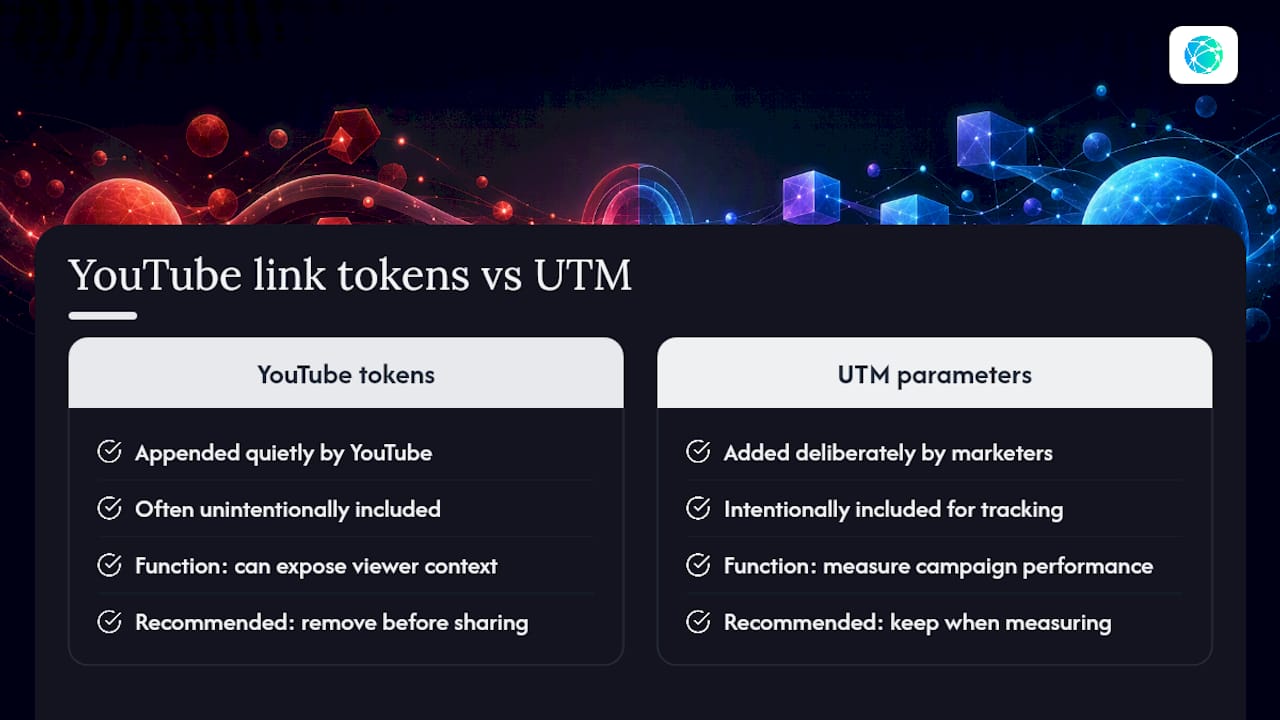
YouTube link tracking covers two very different things people lump together: the tokens YouTube quietly appends to your share URLs, and the tracking parameters marketers deliberately add to measure campaign performance. Confusing the two leads to bad decisions. One is something you probably want to remove. The other is something you probably want to add.
How to read a YouTube URL and spot tracking parameters
A YouTube link has two possible shapes: the short form (youtu.be/VIDEO_ID) and the long form (youtube.com/watch?v=VIDEO_ID). Everything after the question mark is a query string, a set of key/value pairs separated by ampersands. That's where trackers hide.
Per the URL structure that governs how browsers parse links, a query parameter only affects what happens after the page loads. It's bolted on, not baked in, which is exactly why you can often delete one without breaking the link.
Here's what to look for:
si=— the parameter community threads have flagged repeatedly as a share-session identifier that gets attached automatically when you tap the Share button on mobile or desktop.t=orstart=— a timestamp marker. Keep this one; it's functional, not a tracker.list=— a playlist ID. Also functional, also worth keeping if you're sharing a specific playlist context.utm_source,utm_medium,utm_campaign— UTM parameters, the standardized fields marketers use for campaign reporting. These aren't YouTube's doing; they show up when a link has passed through a marketing tool or shortener.
The verification step is simple: delete the suspicious parameter, paste the trimmed link into a new browser tab, and confirm the video still loads correctly. If it does, that parameter was never necessary for playback.
What Tracking Tokens Might Reveal, and When That Actually Matters
The si token has drawn attention because it's unique to the specific share action that created it, not to the video itself. Community reports and PSA threads across forums have raised concerns that this uniqueness could, in theory, tie a shared link back to the account or session that generated it. YouTube hasn't published a technical breakdown of what the token stores, so treat the concern as plausible rather than confirmed.
Context changes the stakes considerably:
- Higher risk: posting a link on an anonymous forum, sharing in a group where you'd rather not be personally identified, or forwarding a video in any setting where account correlation could expose you.
- Lower risk: sending a link to a sponsor for a performance report, sharing inside a private team channel, or coordinating with a collaborator who already knows who you are.
Pro Tip: When you're not sure whether a share is "public enough" to matter, strip the parameter anyway. It costs you five seconds and there's no scenario where removing it makes anything worse.
How to Remove or Avoid Tracking Tokens Before You Share
Three ways to handle this, ranked from zero-effort to systematized.
- Manual edit. Copy the link, find the question mark, and delete everything after it except
v=VIDEO_ID(andt=orlist=if you need them). Paste the result somewhere private and click it to confirm it still resolves. - Browser extensions. Tools like the Remove Youtube tracking extension automatically strip the
siparameter from YouTube URLs as you copy them. Before installing anything, check what permissions it asks for. A link cleaner has no legitimate reason to request access to your browsing history or the contents of every page you visit; it only needs to read the URL bar. - Sharing workflow discipline. If you're on a team, build a habit of running every outbound link through a cleaner or shortener before it goes into a post, a description, or a pinned comment. One weak link in that chain (someone copy-pasting straight from the app) undoes the other two.
Community threads discussing the si token show enough recurring concern that "just strip it" has become the default advice among privacy-conscious users, even without an official YouTube statement confirming what the token does.
Copy-paste checklist before you hit post: Does this URL have anything after the video ID or timestamp that I didn't add myself? If yes, remove it and retest.
How to Track YouTube Links the Right Way for Analytics
Here's the blind spot that trips up almost every creator: YouTube Analytics gives you Overview, Content, Reach, Engagement, Audience, and Revenue tabs, and none of them tell you how many people clicked a plain link in your video description. You can dig into Advanced Mode and export every report YouTube offers, and you still won't find a description-link click count. That data simply doesn't exist inside YouTube Studio.
The fix is a short link for every placement, not one link reused everywhere.
| Placement | What to track | Why it matters |
|---|---|---|
| Video description | A unique short slug | Description links often get the least engagement on mobile |
| Pinned comment | A different unique slug | Pinned comments frequently outperform description links on mobile viewers |
| End screen | A slug tied to an approved external domain | YouTube requires the domain be approved before the external end-screen link will function |
Once you have a unique slug per spot, append UTM parameters to each one so the click data flows cleanly into GA4 or your landing page's conversion tracking. The redirect forwards the UTM string along with it, so a click on your pinned-comment link and a click on your description link show up as two distinct rows in your analytics, not one blended number. A branded short domain also tends to get clicked more than a generic shortened link, since viewers trust something that looks like it belongs to you.
Recommended Workflow: Branded Short Links Solve Both Problems at Once
Stripping tracking tokens protects your privacy. Building per-placement short links gets you real click data. Lflow handles the second half of that equation without asking you to touch a spreadsheet.
The workflow looks like this:
- Create a branded short link (your own link-in-bio hub or a standalone short URL) for each placement: description, pinned comment, end screen.
- Paste a different slug into each spot instead of reusing the same raw YouTube link everywhere.
- Check real-time click analytics per link to see which placement is actually driving traffic.
- Export the numbers as a CSV when a sponsor asks for a performance report.
Pro Tip: If you run a QR code on a livestream overlay or a printed flyer, generate one from the same short link you're using in the description. That way offline and online promotion roll into the same click count instead of splitting your data across two systems.
*First-hand author credentials, case study, and internal usage metrics:
Official Docs and Helpful Reads
For the details straight from the source, YouTube's Analytics overview explains what each reporting tab covers, and the Advanced Mode and export guide walks through pulling raw data out of Studio. If you want the technical grounding for UTM tagging, the UTM parameters reference breaks down each field. Marketers looking to connect click data to revenue outcomes might also find this piece on analytics and ROI worth a read.
The Real Lesson in All This Tracking Confusion
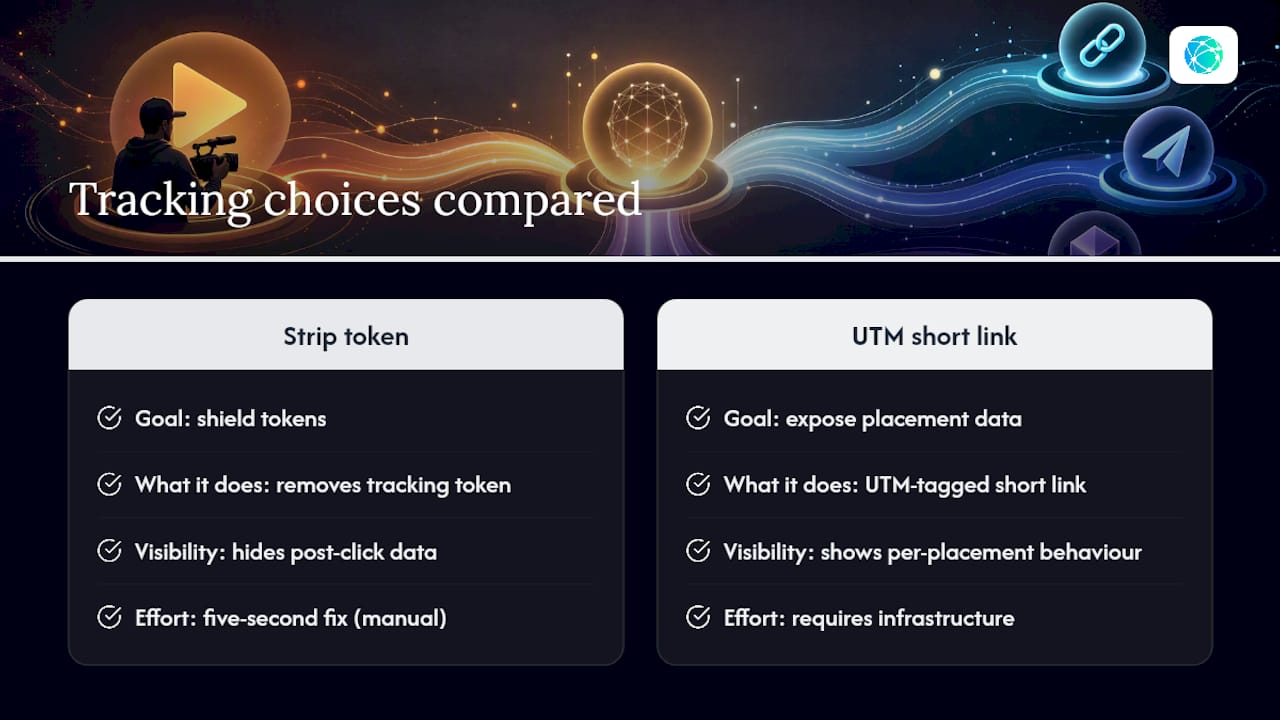
Most advice on this topic treats "tracking" as one problem with one fix, and that's the mistake. Stripping the si token and building a UTM-tagged short link are opposite moves solving opposite problems, one shields you, the other exposes data you actually want visible. Conflating them is why so many creators either overshare tokens they should have deleted, or under-measure campaigns they're paying sponsors to report on.
The conventional advice ("just copy the share link") ignores that YouTube's own analytics can't see what happens after someone clicks a description link. That's not a minor gap. It means every creator running sponsorships or affiliate links off raw YouTube URLs is reporting numbers, they just aren't the right numbers.
Prioritize the short link habit first. Privacy stripping is a five-second fix you can do manually forever. Getting real per-placement data requires infrastructure, and building that habit now saves you from guessing which sponsorship placement actually earned its fee.
— Axion
Get Clean, Trackable Links Without the Guesswork
Lflow gives you one branded hub for every link you share, description, pinned comment, end screen, bio, all pulling real-time click data the moment someone taps through. Instead of pasting the same raw YouTube URL everywhere and hoping for the best, you mint a distinct slug for each spot and watch which one actually converts.
Setup is quick, and every link includes an analytics dashboard and a downloadable QR code for offline promotion. If you're a creator juggling sponsor reports or a marketer trying to demonstrate which placement performs best, this tool can assist with that task. Set up your free link-in-bio page and start tagging your next video's placements before your next upload goes live.