

Four methods actually work: submit URLs to the Wayback Machine's bulk API, install a WordPress auto-archiver plugin, wire a Google Sheet into Auto Archiver, or run ArchiveBox on your own server. The Wayback Machine and the WordPress plugin win on convenience; Auto Archiver and ArchiveBox win on control and proof that the archive is real. Pick one to start, then layer a second for backup.
TL;DR:
- Using the Wayback Machine or plugins is ideal for quick, public links, but they lack control and verifiability for critical archival needs.
- Auto Archiver via Google Sheets offers a user-friendly pipeline for team collaboration, with metadata like hashes and timestamps ensuring archive authenticity.
- Self-hosted ArchiveBox provides full ownership, enabling detailed control over archive files, organization, and long-term preservation independent of third-party services.
- Automating snapshots at the moment of publication reduces the risk of content loss and supports a reliable, redundancy-layered archiving strategy.
- Respect legal restrictions and site protocols, such as robots.txt or login requirements, and implement throttling to avoid disruptions during bulk archiving.
Table of Contents
- What Are Auto Archived Links and Which Method Fits You?
- Automating Snapshots With the Wayback Machine
- How WordPress Plugins Automate Link Archiving
- Auto Archiver: Google Sheets Pipelines for Teams
- Self-Hosted ArchiveBox: Durable Archives You Actually Own
- Formats and Metadata: What Makes an Archive Trustworthy
- Choosing Between Convenience, Ownership, and Verifiability
- Building a Google Sheets to Auto Archiver Pipeline Step by Step
- Legal and Practical Limits You Need to Know
- Why Automatic Archiving Should Be Default, Not an Afterthought
- Keep Your Links Alive With Lflow's Scheduled Archiving
- Sources
What Are Auto Archived Links and Which Method Fits You?
Auto archived links are snapshots of a web page saved automatically, on a schedule or trigger, instead of someone manually copying a URL into an archive tool every time a link goes live. The four approaches below solve different problems, and most people end up using at least two.
- Wayback Machine (bulk/API): best for one-off links or small batches you want publicly viewable fast, no setup required.
- WordPress plugin: best if you run a blog or content site and want every outbound link archived without touching code.
- Auto Archiver via Google Sheets: best for small teams collaborating on research, journalism, or link-heavy projects.
- ArchiveBox self-hosted: best if you want full ownership of the files and don't want to depend on a third party.
Cost and skill scale in that order too. The Wayback Machine costs nothing and needs zero technical background. ArchiveBox needs a server and some comfort with Docker. A common setup: use the Wayback Machine or a plugin for public convenience, then mirror the same links into ArchiveBox so you're not entirely dependent on someone else's infrastructure.
Automating Snapshots With the Wayback Machine
The Internet Archive's Wayback Machine lets you save a page on demand through Save Page Now, or submit lists in bulk through partner tools and endpoints built for higher volume. For a single link, you paste the URL and get a permanent snapshot address back within seconds to a couple of minutes. For bulk lists, processing takes longer and the archive queues submissions, so plan for delayed confirmation rather than instant results.
Once saved, the archived URL follows a predictable pattern, and you can retrieve it anytime using the Wayback Machine's own retrieval guidance, which also explains how the service matches requests to the nearest available capture when an exact date isn't on file.
Snapshot cadence that actually holds up:
- Archive on publish, not after the fact. Waiting until a link breaks means the content is already gone.
- Re-archive periodically. Many workflows re-run every 30 days to catch edits.
- Don't rely on the Wayback Machine alone for anything mission-critical. It's a public service, not a guaranteed backup.
The trade-off: free, public, and dead simple. But you don't control the infrastructure, and there's no verifiable hash or metadata tying the snapshot to your organization.
How WordPress Plugins Automate Link Archiving
If your content lives on WordPress, you don't need a separate pipeline. A plugin like the Internet Archive Wayback Machine Link Fixer scans outbound links in your posts, checks whether the Wayback Machine already has a snapshot, and queues a new one if it doesn't. New posts get archived shortly after publication, and existing posts can be batch processed retroactively.
Here's the typical setup sequence:
- Install the plugin and connect it to your site's outbound link list.
- Set your re-archive cadence on a recurring schedule that can be adjusted, commonly monthly, matching how the plugin's own documentation frames it.
- Enable redirect handling so broken links point to the archived version instead of a dead page.
- Run a batch scan on older posts so you're not only protecting new content going forward.
Under the hood, most of these plugins rely on Action Scheduler, a WordPress background job system, to queue archive requests and retry fetching the final snapshot URL until it's ready, according to the plugin's GitHub documentation. That queuing matters because archive requests aren't instant, and a plugin that tried to do this synchronously would slow down your site.
Pro Tip: Check your plugin's rate-limit settings before running a full batch scan on a large site. Submitting hundreds of URLs at once can get throttled, so stagger the run or use the plugin's built-in delay setting.
Watch for staging site detection (you don't want test environments archiving junk pages) and add an opt-out for sensitive posts you'd rather keep out of a public archive entirely.
Auto Archiver: Google Sheets Pipelines for Teams
Auto Archiver, the tool built and maintained around Bellingcat's investigative workflows, treats archiving as a pipeline rather than a single action. A feeder (usually a Google Sheet) supplies URLs. An extractor pulls the page, video, or social post. An enricher adds metadata like hashes and timestamps. Storage modules push the final files to Google Drive, S3, or a local disk, and a database or reporting module writes status back to the original sheet.
That architecture matters for teams because nobody needs to touch code to contribute a link. Anyone with sheet access drops in a URL, and the pipeline runs on its own.
- Feeder: Google Sheets (most common), though other input sources are supported.
- Enricher: generates hashes and timestamps so the archive can be verified later.
- Storage: Google Drive or S3 for hosted teams; local storage for self-run setups.
- Reporting: archive links and status get appended to a CSV or written back into the sheet.
Bellingcat's own documentation on the Auto Archiver toolkit stresses that metadata generation isn't optional if you need the archive to hold up as evidence. A screenshot without a hash and a timestamp is just a picture. A screenshot with both is something you can defend.
Non-technical teams can run Auto Archiver through hosted configurations without managing servers, while technical teams often self-host it for full control over storage and retention.
Self-Hosted ArchiveBox: Durable Archives You Actually Own
ArchiveBox saves the full picture: WARC files, single-file HTML snapshots, PDFs, screenshots, and metadata, all landing on disk under your control. That combination matters because a WARC file alone is hard for a human to skim, but a single-file HTML version opens in any browser without needing the original archiving software running.
The ArchiveBox project recommends deploying through Docker Compose, which bundles the dependencies it needs (Chrome for rendering, wget for raw capture, yt-dlp for video) so you're not managing five separate installs and fighting version mismatches later. Once running, you schedule imports from RSS feeds, browser bookmarks, or a CSV list, and ArchiveBox pulls new links automatically on whatever interval you set.
- What you get: exportable files you can move, back up, or hand off, independent of any company's continued existence.
- What it costs you: server time, occasional maintenance, and the responsibility of keeping your own backups current.
- Best for: anyone who's been burned by a service shutting down or changing terms, and wants archives that outlive any single vendor.
The honest trade-off: convenience goes down, ownership goes up.
Formats and Metadata: What Makes an Archive Trustworthy
A durable archive needs two things: a replayable file and proof of what it captured. WARC and single-file HTML formats let you actually view the page later. Hashes and timestamps prove the capture is what it claims to be and when it happened.
- Keep the replayable file (WARC or HTML) alongside a metadata file (often an index.json with hash and timestamp data).
- A mismatched hash on a later check tells you the stored file has been altered or corrupted, which is exactly what you want to catch.
- Organize archives by date, keep a running CSV log of what's been captured, and duplicate storage to a cloud bucket so a single disk failure doesn't wipe your history.
Bellingcat's toolkit documentation treats hashing and timestamping as non-negotiable for investigative use, since an archive with no way to verify its own authenticity doesn't hold up under scrutiny.
Choosing Between Convenience, Ownership, and Verifiability
Match the tool to what you're actually optimizing for, not what sounds most impressive.
- Scale: a handful of links, use the Wayback Machine. Hundreds per month across a team, build the Auto Archiver pipeline.
- Technical skill: no coding, lean on the WordPress plugin or hosted Auto Archiver. Comfortable with servers, ArchiveBox pays off.
- Control: need to prove authenticity later, prioritize hashing and timestamps over a purely public archive.
- Sensitivity: anything you can't put in a public archive belongs in a self-hosted setup from the start.
Ask yourself three questions before building anything: how long do you need this retained, who else needs access, and are there legal restrictions on the content itself. Mixing a public archive (Wayback Machine or plugin) with a private one (ArchiveBox) gives you redundancy without giving up the convenience of either.
Building a Google Sheets to Auto Archiver Pipeline Step by Step
This is the setup most small research and content teams land on once they outgrow manual archiving.
- Create the sheet. Add columns for URL, status, archive URL, timestamp, and notes. Anyone on the team can drop a link into the URL column.
- Configure Auto Archiver modules. Point the feeder at your sheet, pick an extractor for the content types you're capturing (webpages, video, social posts), and enable an enricher for metadata.
- Set your storage destination. Google Drive works for smaller teams; S3 scales better for high volume, according to the tool's own documentation.
- Schedule runs. Auto Archiver checks the sheet on your chosen interval, processes new rows, and writes the archive URL, status, and timestamp back automatically.
- Monitor the report. Failed rows show up with an error status instead of silently vanishing, so check the sheet periodically rather than assuming every run succeeded.
Pro Tip: Most pipeline failures trace back to authentication tokens expiring or content sitting behind a login. Build a "manual review" column into your sheet for anything the pipeline flags as inaccessible, so it doesn't just disappear from tracking.
Rate limits are the other common failure point. If you're archiving in bulk, throttle your submission rate rather than firing every row at once.
Legal and Practical Limits You Need to Know
Robots.txt and site terms of service can block automated capture, and paywalled or login-gated content usually needs manual saving since automated tools can't authenticate on your behalf. Some archives will simply refuse to capture what they can't legally access.
- Respect robots.txt directives; most reputable archiving tools already honor them by default.
- Copyright and terms-of-service questions get genuinely complicated for redistribution, so consult a legal professional for anything beyond personal reference use.
- Rate limits and service outages are real operational risks. Throttle your requests and store copies in more than one location so a single outage doesn't cost you the archive.
Why Automatic Archiving Should Be Default, Not an Afterthought
Most people treat archiving as damage control, something you do after a link already returned a 404. That's backwards. The tools covered here work because they run at the moment of publication, when the content is guaranteed to still exist. Waiting for rot to happen first is the single biggest mistake in this space, and it's an easy one to fix by flipping the order: archive first, worry never.
For creators managing dozens of outbound links across bios, posts, and campaigns, this isn't a one-time project — consider how to streamline your link building workflow for higher rankings. It's a workflow decision, and it's exactly why centralized link management and automatic preservation belong in the same conversation.
— Axion
Keep Your Links Alive With Lflow's Scheduled Archiving
Lflow's link in bio pages come with scheduled and auto-archived links built in, so you're not stitching together a separate pipeline just to keep your bio links from rotting. Instead of monitoring dozens of outbound URLs manually, you consolidate everything into one branded hub and let the archiving happen in the background.
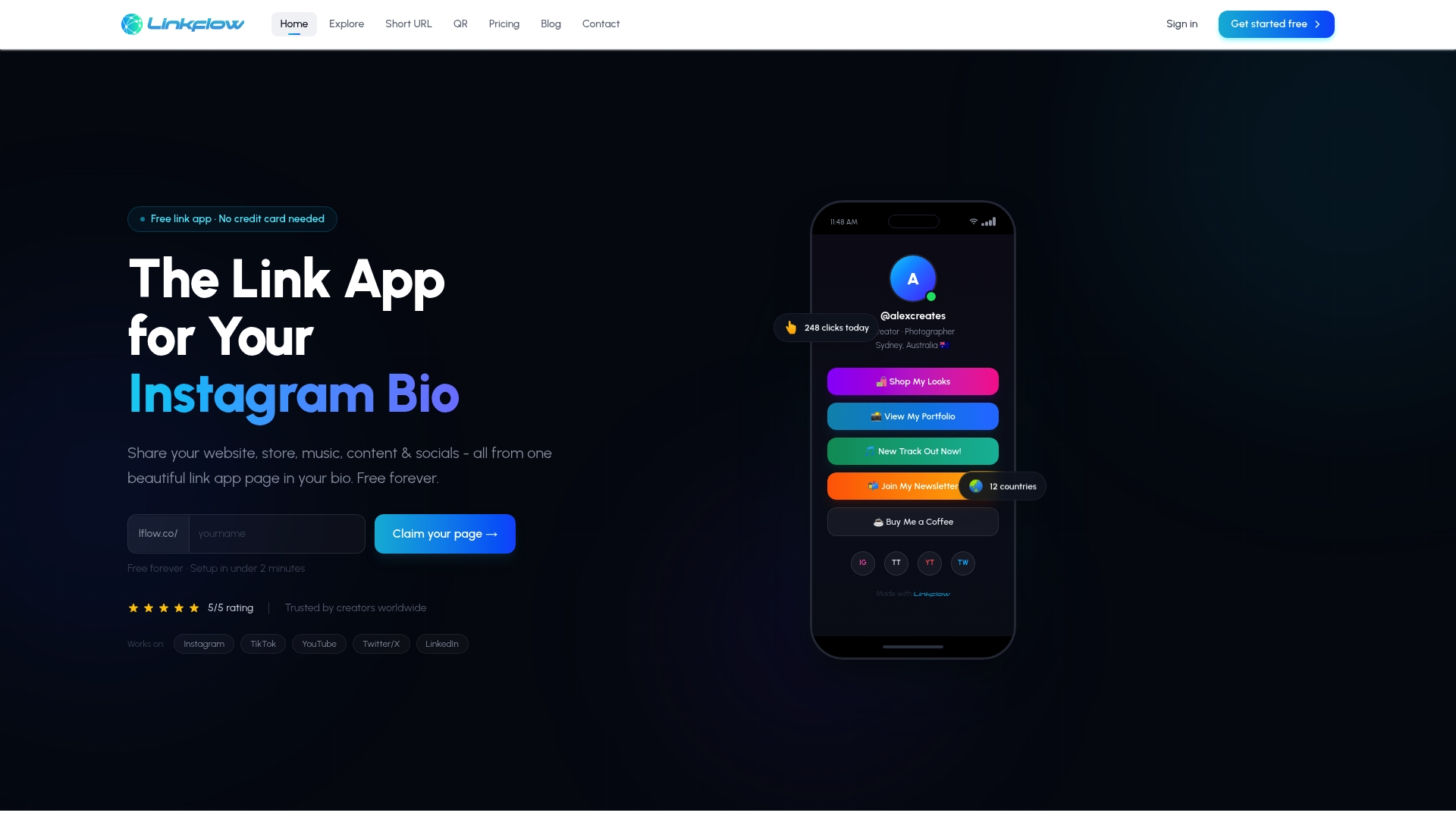
Setup takes the same under-two-minute onboarding Lflow is built around: pick your links, drop them into your page, and turn on scheduled archiving without writing a line of code. You also get free QR codes, real-time analytics, and a centralized link hub that keeps every destination, from your storefront to your latest video, in one reliable place.
Start on the free link in bio plan and enable scheduled archiving on your existing links today. If you outgrow the free tier, Lflow's pricing page covers the upgrade paths for advanced analytics and custom domains.
Sources
- Wordpress
- ArchiveBox - Open-source self-hosted web archiving
- Auto Archiver documentation
- Using the Wayback Machine
- Bellingcat Auto Archiver toolkit